
1) Add to Cart
Pick the product you would wish to purchase, review the information, and click the Add to cart Button

2) Proceed to Checkout
Visit your Cart to view and confirm all the products in your cart proceed to the Checkout. You can use a coupon if you have one.

3)Enter your details and proceed to payment with the available methods
If you already have an account registered with us click on Returning customer and enter your existing Login and Password.
Otherwise fill in the Checkout form with your First Name, Last Name, Email Address a UserName and a Password so you can register to our page.
Following that click the Proceed to the available payment methods to make a purchase

4) Validate the product
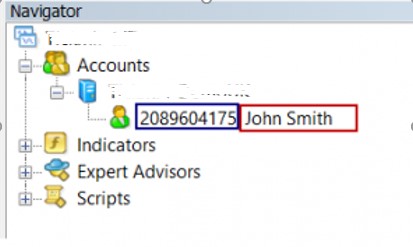
In order to be allowed to use a product with your Metatrader trading account you would need to validate by specifying your MT4/MT5 Account Number.
You can get this information from your Platform at the Navigator window
From the My Account section click the Metatrader Accounts Tab
You will see all your purchased products and you can enter on which MT4/MT5 Accounts they can work with.
Select the Product you wish to validate, enter your MT4/MT5 Account Numbers and press edit You will only be able
to use the product on accounts with the selected numbers. You can change them at any time.

5)Download the product and install the product
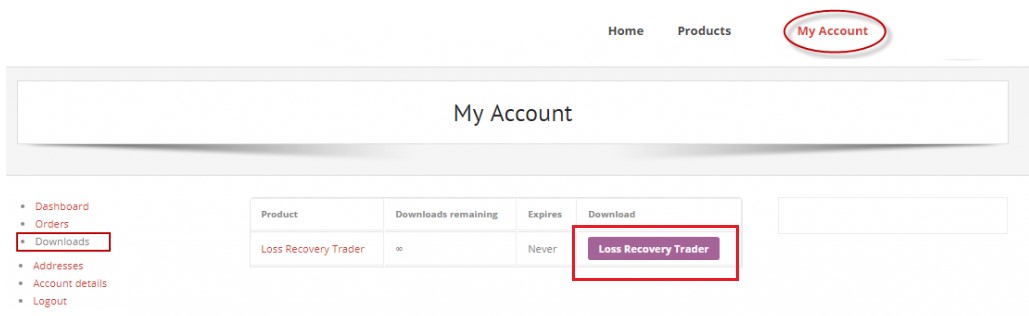
From My Account tab, select Downloads and there you can see all your purchased products from where you can download them.
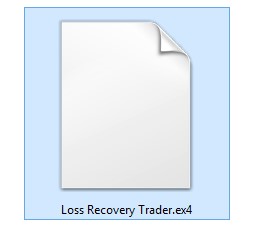
Ensure you have unzipped the downloaded file.
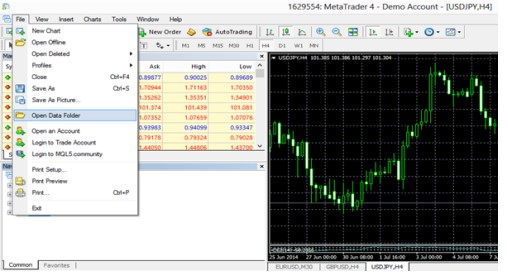
Open your MT4/MT5 client terminal and go to File/Open Data Folder
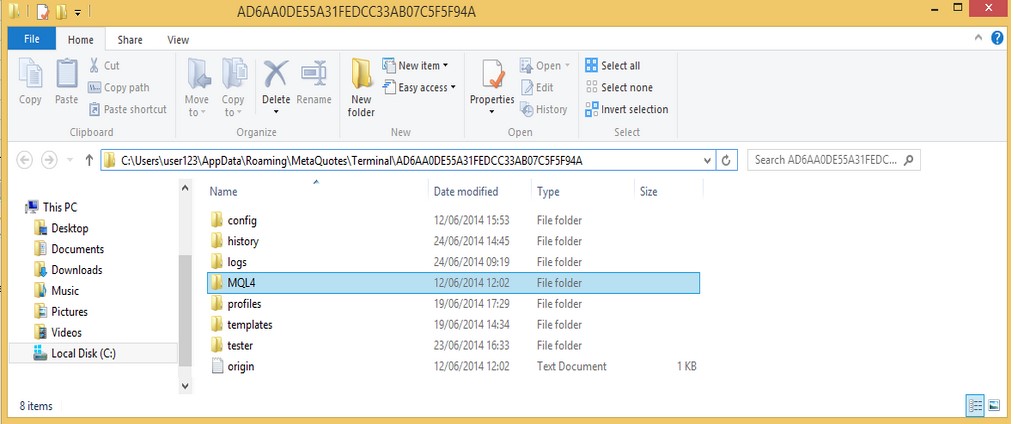
Open folder MQL4 for MT4 MQL5 for MT5 folder
Open the Experts folder and paste the file there

Some Expert Advisors may contain additional files such as Indicators,Libraries, Include, Scripts .
Each of these files needs to be copied to the folder with the same name.
Restart the MT4/MT5 platform.
6)Allow Connections to our Page
On you MT4/MT5 client Terminal
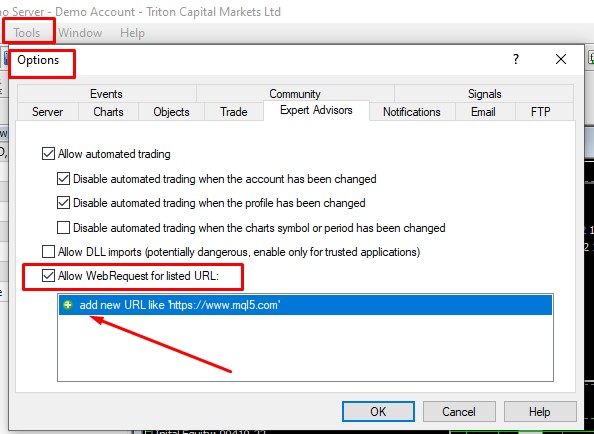
1. Go to Tools/Options/Exper Advisors Tab
2. Tick Allow WebRequest for listed URL:
3. Click on add new URL ,enter https://www.forexpowertraders.com in the list and press ok.
7)Run The Product
Go to the Navigator window and locate the Product.
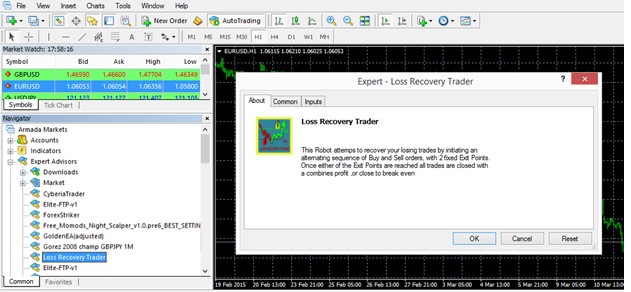
Locate the file and put it on the chart you wish to trade.
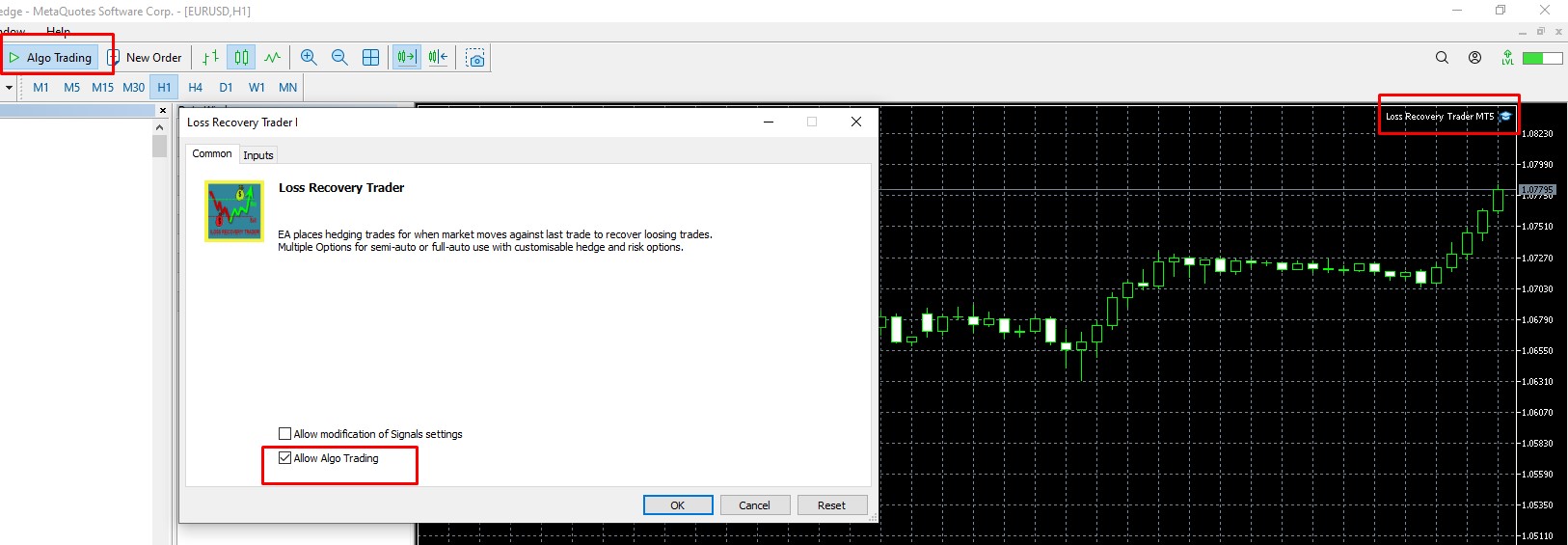
Ensure that all the following options are ticked in the Common Tab of the Expert Advisor and the AutoTrading Button in the MT4/MT5 is clicked. If all is fine you will see this at the top right corner of terminal. If is not correct you will see an x or a sad face